10 tips for organizing your first video game project with AI

Unity Team - Unity Technologies
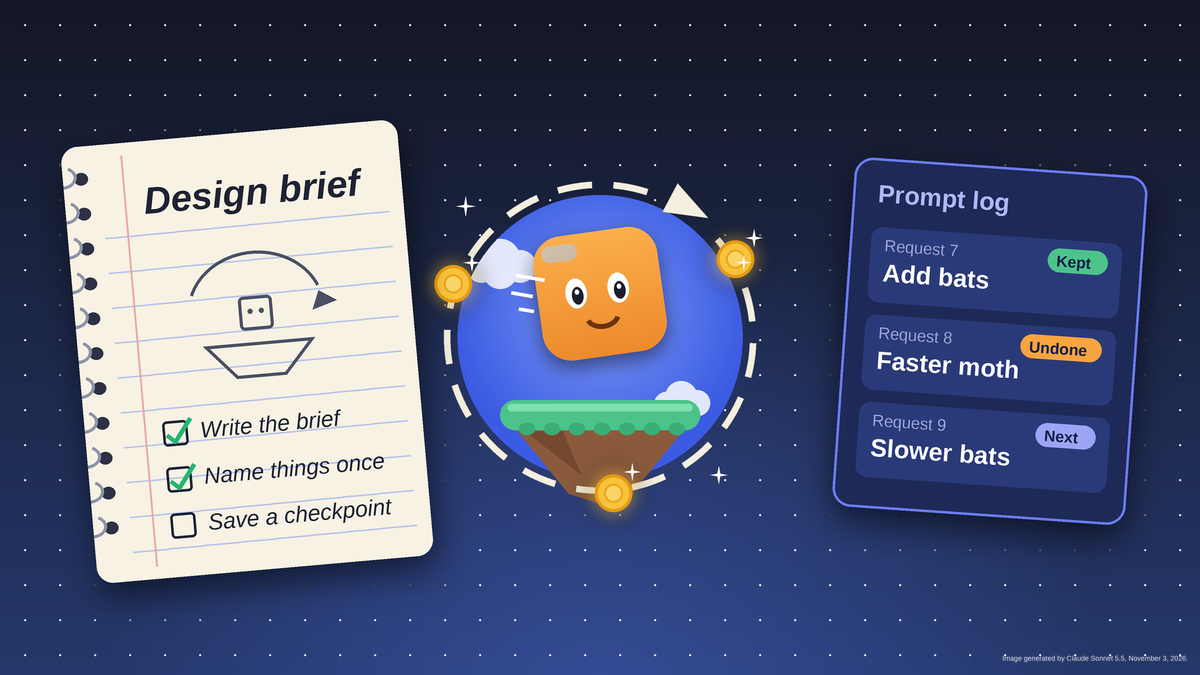
Keep your first video game on track from day one with ten simple ways to organize your ideas, prompts, and progress.
Think about the last time you asked someone for something, got a result you almost liked, and then couldn’t remember exactly what you asked. Now picture that happening across every character, screen, and rule in a video game. That’s what organizing a game project means: deciding what you’re building, what each piece is called, and how you keep track of changes, ideas, and progress.
When you build a game with AI by prompting a tool like Unity Spark to create it (or vibe code it) from a plain-language description, you don’t need to write code or learn a traditional game engine.
You still make the decisions an engine normally forces on you, though: what each screen does, how everything looks, and what to build next. These ten habits keep those decisions in one place. They don’t take technical skills, and they’ll save you time whether you’re working alone or with friends.
1. Write one design brief and keep it handy
Open any notes app and start one page that describes your game. Begin with a single sentence about what the player does, like “The player guides a moth through a dark garden to collect glowing lights while dodging bats.” That sentence names your core game loop, the action players repeat most. Then add the controls, how a player wins and loses, and the look you want.
This brief is your home base, and it doubles as the source for your first prompt. When you’re unsure what to ask for next, start there. Our one-page design document guide has a template you can copy into your notes.
2. Build one small piece at a time
A whole game is a lot to ask for in one go, and a long request is harder to check. Split your game into pieces you can finish one at a time: a title screen, level one, a win screen, a lose screen. Ask for one piece, look at what you get, and fix it before you move on. When something goes wrong, you’ll know where to look, because you only changed one thing.
List your pieces in your notes and work through them in order. Finishing a small piece feels good, and it keeps the project moving.
3. Name things once, and use the same word every time
Names keep you and your tools on the same page. Pick one name for each character, object, and screen, write it in your notes, and use exactly that word every time you describe it. If your main character is “Moth,” don’t call it “the player,” “my bug,” and “the little guy” in different requests. Different words can read as different things, so your results may drift. If you rename something later, update your notes and use the new name everywhere.
4. Keep one list for all your ideas
New ideas will keep coming, and when adding a feature is as easy as typing a request, it’s tempting to say yes to all of them. Keep a single ideas list in your notes and sort each idea under one heading: must have, should have, could have, or won’t have this time. To decide, ask, “What happens if this is missing?” If the answer is “The game doesn’t work,” it’s a must-have.
For the moth game, moth movement, collectible lights, and moving bats are must-haves, because without them there’s no game. Story cutscenes (short, movie-like scenes that play without the player controlling anything) and online leaderboards (a ranking list that shows the highest scores from players around the world) go under won’t have. Both are nice to have, but the game works without them, and each one takes extra time to build. Keeping the won’ts on the list, instead of deleting them, stops cut ideas from sneaking back in and gives you a head start on your next game.
5. Describe your look in words you can reuse
A game looks best when everything in it matches, and a tool can only match what you describe. Write a short style description in your notes: the visual style you chose, such as pixel art or hand-drawn, your color palette, the shapes you’ll use for friendly and dangerous characters, and a few reference images. Studios call this an art bible. Yours can be a few lines.
Then reuse those exact words in your requests, so each new screen or character comes out matching the last.
6. Change one thing at a time, then playtest
When you ask for several changes at once, it’s hard to tell which one caused a problem. Ask for one change, play your game for a minute, and decide whether to keep it or undo it. Small and frequent beats big and surprising.
Playing matters more than it seems. There’s always a gap between how you imagine a game will feel and how it plays in practice, so play after every change instead of every few.
7. Save a checkpoint before big changes
Professional teams use software called version control, a system that records the history of a project so they can go back if something goes wrong. Spark has a version of that habit built in. It saves a restore point automatically after each prompt, and restoring one puts your whole game back to that point. A restore is recorded as a new entry in your history, so you can undo it by restoring to just before it. For small fixes, undo and redo (Ctrl+Z and Ctrl+Shift+Z) step back through recent edits one at a time.
Restore points don’t last forever. Spark keeps them for 7 days, and only the newest 20 in each conversation, so very old history may not be restorable. Before a big change, write a short label in your notes for the version you’d want to come back to and the request it followed, such as “v3 – added bats, after request 7.” Unity’s guidance recommends small, frequent saves with clear descriptions, and says these habits are useful even on a solo project.
8. Keep a prompt log
In your notes, keep a running log of what you asked and what happened. For each request, write the request, what you got, and whether you kept it. For example: “Request 7: add three bats that fly across the garden. Result: bats appear but fly too fast. Next: ask for slower bats.”
A log lets you repeat what worked, avoid what didn’t, and pick up where you left off after a break. Over time, it also shows you which kinds of requests give you the results you want.
9. Keep track of where things came from
If your tool lets you upload your own images or sounds or creates art and music for you, note where each piece came from: made by you, created by the tool, or downloaded from someone else. For anything from outside, write down who made it and what the terms say, including whether it needs a credit and whether you can use it in a game you share. That way you always know what’s yours, what came from elsewhere, and what you might need to credit.
10. Track what’s done and what’s left
A project without a finish line never ends, and without a list of what’s left, it’s hard to tell how close you are. Make a simple tracker with three columns: to do, doing, and done. Start by filling the first column with what finished means for this version. A simple checklist might include:
- A title screen
- Your core gameplay
- A way to win or lose
- Sound effects
- A score or other way to track progress
- A version you can share
Move items across as you finish them, and add three or four milestones with rough dates, like “playable core gameplay” and “shared with friends.” Show your game to real people as soon as it’s playable, even if it’s rough.
Your turn
Open your notes app and write your one-sentence game description. Fill in this sentence:
In my game, you ___, then ___, so you can ___.
Save it as the first line of your design brief. That’s a project with a home, and every other habit on this list builds from there. When you get access to Unity Spark, paste it in as your first prompt, play what you get, and write down the first thing you’d change.
Ready to try organizing your first video game project? You don’t need to be a developer. Try Unity Spark, Unity’s browser-based, AI game creation platform that allows you to describe your game, refine it in a real web editor, and publish it for others to play.
*Header image note: A notebook page titled “Design brief” with a checklist, an orange character hopping around a loop on a floating island, and a prompt log card. Image generated by Claude Sonnet 5.5, November 3, 2026.